Wednesday, September 7, 2016

Change the color of text

www.iptindia.com

Change the color of text

You can make the data on your worksheets more visible by changing the font color of cells or a range of cells, formatting the color of worksheet tabs, or changing the color of formulas.

Change the text color for a cell or range of cells

  1. Select the cell or range of cells that has the data you want to format. You can also select just a portion of the text within a cell.
  2. On the Home tab, choose the arrow next to Font Color Font Color button on the Home tab .
  3. Under Theme Colors or Standard Colors, choose a color.
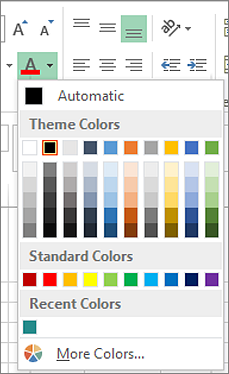
    Font color picker
    Tip: To apply the most recently selected text color, on the Home tab, choose Font Color.
Note: You can also change the font, size, and color of comments in your worksheet.

Apply a custom color

If you want a specific font color, here's how you can blend your custom color:
  1. Click Home > Font Color arrow Font Color button on the Home tab > More Colors.
  2. On the Custom tab, in the Colors box, select the color you want.
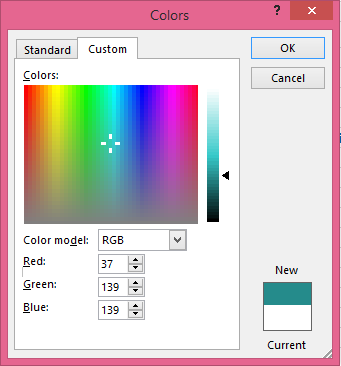
    Colors custom blending option If you know the color numbers of a specific color, pick RGB (Red, Green, Blue) or HSL (Hue, Sat, Lum) in the Color model box, and then enter the numbers to match the exact color shade you want.
Tip:  To quickly copy a font color you used to other cells, select a cell with that font color, and double-click Format Painter Format Painter button . Then click the cells you want to format. When you're done, click Format Painter again to turn it off.

Format the color of a worksheet tab

  1. Right-click the worksheet tab whose color you want to change.
  2. Choose Tab Color, and then select the color you want.
    The color of the tab changes, but not the color of the font. When you choose a dark tab color, the font switches to white, and when you choose a light color for the tab, the font switches to black.

See Also

Change the appearance of your worksheet
Use a formula to apply conditional formatting

Was this information helpful?

Great! Any other feedback?

How can we improve it?

To protect your privacy, please do not include contact information in your feedback. Review our privacy policy.

Thank you for your feedback!

www.iptindai.com

Format numbers as currency

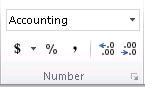
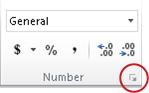
If you want to display numbers as monetary values, you must format those numbers as currency. To do this, you apply either the Currency or Accounting number format to the cells that you want to format. The number formatting options are available on the Home tab, in the Number group.
Number group on the Home tab

In this article

Format numbers as currency
Remove currency formatting
What's the difference between the Currency and Accounting formats?
Create a workbook template with specific currency formatting settings

Format numbers as currency

You can display a number with the default currency symbol by selecting the cell or range of cells, and then clicking Accounting Number Format Accounting number format button in the Number group on the Home tab. (If you want to apply the Currency format instead, select the cells, and press Ctrl+Shift+$.)
If you want more control over either format, or you want to change other aspects of formatting for your selection, you can follow these steps.
Select the cells you want to format
On the Home tab, click the Dialog Box Launcher next to Number.
Dialog Box Launcher in Number group
Tip: You can also press Ctrl+1 to open the Format Cells dialog box.
In the Format Cells dialog box, in the Category list, click Currency or Accounting.
Format Cells dialog box
In the Symbol box, click the currency symbol that you want.
Note: If you want to display a monetary value without a currency symbol, you can click None.
In the Decimal places box, enter the number of decimal places that you want for the number. For example, to display $138,691 instead of $138,690.63 in the cell, enter 0 in the Decimal places box.
As you make changes, watch the number in the Sample box. It shows you how changing the decimal places will affect the display of a number.
In the Negative numbers box, select the display style you want to use for negative numbers. If you don't want the existing options for displaying negative numbers, you can create your own number format. For more information about creating custom formats, see Create or delete a custom number format.
Note: The Negative numbers box is not available for the Accounting number format. That's because it is standard accounting practice to show negative numbers in parentheses.
To close the Format Cells dialog box, click OK.
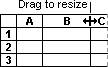
If Excel displays ##### in a cell after you apply currency formatting to your data, the cell probably isn't wide enough to display the data. To expand the column width, double-click the right boundary of the column that contains the cells with the ##### error. This automatically resizes the column to fit the number. You can also drag the right boundary until the columns are the size that you want.
Column boundary being dragged
Top of Page

Remove currency formatting

If you want to remove the currency formatting, you can follow these steps to reset the number format.
  1. Select the cells that have currency formatting.
  2. On the Home tab, in the Number group, click General.
    Cells that are formatted with the General format do not have a specific number format.
Top of Page

What's the difference between the Currency and Accounting formats?

Both the Currency and Accounting formats are used to display monetary values. The difference between the two formats is explained in the following table.
Format Description Example
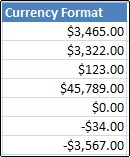
Currency When you apply the Currency format to a number, the currency symbol appears right next to the first digit in the cell. You can specify the number of decimal places that you want to use, whether you want to use a thousands separator, and how you want to display negative numbers.
Tip: To quickly apply the Currency format, select the cell or range of cells that you want to format, and then press Ctrl+Shift+$.
Currency number format applied to cells
Format Description Example
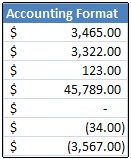
Accounting Like the Currency format, the Accounting format is used for monetary values. But, this format aligns the currency symbols and decimal points of numbers in a column. In addition, the Accounting format displays zeros as dashes and negative numbers in parentheses. Like the Currency format, you can specify how many decimal places you want and whether to use a thousands separator. You can't change the default display of negative numbers unless you create a custom number format.
Tip: To quickly apply the Accounting format, select the cell or range of cells that you want to format. On the Home tab, in the Number group, click Accounting Number Format Accounting number format button . If you want to show a currency symbol other than the default, click the arrow next to the Accounting Number Format Accounting number format button button and then select another currency symbol.
Accounting number format applied to cells
Top of Page

Create a workbook template with specific currency formatting settings

If you often use currency formatting in your workbooks, you can save time by creating a workbook that includes specific currency formatting settings, and then saving that workbook as a template. You can then use this template to create other workbooks.
  1. Create a workbook.
  2. Select the worksheet or worksheets for which you want to change the default number formatting.
    How to select worksheets
    To select Do this
    A single sheetClick the sheet tab.
    Sheet tabs
    If you don't see the tab that you want, click the tab scrolling buttons to display the tab, and then click the tab.
    Tab scrolling buttons
    Two or more adjacent sheetsClick the tab for the first sheet. Then hold down Shift while you click the tab for the last sheet that you want to select.
    Two or more nonadjacent sheetsClick the tab for the first sheet. Then hold down Ctrl while you click the tabs of the other sheets that you want to select.
    All sheets in a workbookRight-click a sheet tab, and then click Select All Sheets on the shortcut menu.
    Tip    When multiple worksheets are selected, [Group] appears in the title bar at the top of the worksheet. To cancel a selection of multiple worksheets in a workbook, click any unselected worksheet. If no unselected sheet is visible, right-click the tab of a selected sheet, and then click Ungroup Sheets.
  3. Select the specific cells or columns you want to format, and then apply currency formatting to them.
Make any other customizations that you like to the workbook, and then do the following to save it as a template:

Save the workbook as a template

  1. If you’re saving a workbook to a template for the first time, start by setting the default personal templates location:
    1. Click File, and then click Options.
    2. Click Save, and then under Save workbooks, enter the path to the personal templates location in the Default personal templates location box.
      This path is typically: C:\Users\Public Documents\My Templates.
      Options you can set for saving workbooks
    3. Click OK.
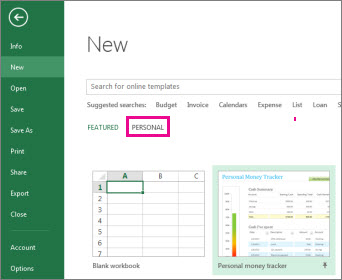
      Once this option is set, all custom templates you save to the My Templates folder automatically appear under Personal on the New page (File > New).
  2. Click File, and then click Export.
  3. Under Export, click Change File Type.
  4. In the Workbook File Types box, double-click Template.
  5. In the File name box, type the name you want to use for the template.
  6. Click Save, and then close the template.

Create a workbook based on the template

  1. Click File, and then click New.
  2. Click Personal.
    Personal templates location
  3. Double-click the template you just created.
    Excel creates a new workbook that is based on your template

Add or change the background color of cells

www.iptindia.com

Add or change the background color of cells

You can highlight data in cells by using Fill Color to add or change the background color or pattern of cells. Here's how:
  1. Select the cells you want to highlight.
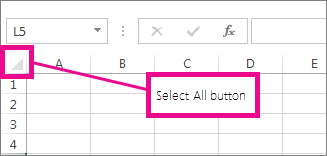
    Tips: To use a different background color for the whole worksheet, click the Select All button. This will hide the gridlines, but you can improve worksheet readability by displaying cell borders around all cells.
    Select All button
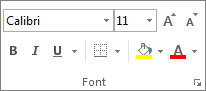
  2. Click Home > the arrow next to Fill Color Button image .
    Font group on the Home tab
  3. Under Theme Colors or Standard Colors, pick the color you want.
    Font color picker To use a custom color, click More Colors, and then in the Colors dialog box select the color you want.
    Tip: To apply the most recently selected color, you can just click Fill Color Button image . You'll also find up to 10 most recently selected custom colors under Recent Colors.

Apply a pattern or fill effects

When you want something more than a just a solid color fill, try applying a pattern or fill effects.
  1. Select the cell or range of cells you want to format.
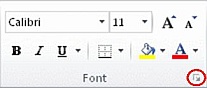
  2. Click Home > Format Cells dialog launcher, or press Ctrl+Shift+F.
    dialog box launcher in the font group
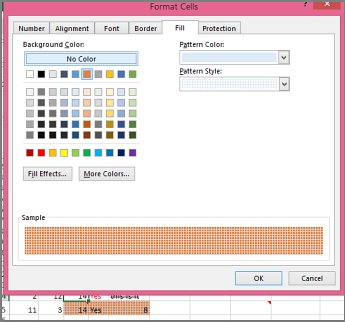
  3. On the Fill tab, under Background Color, pick the color you want.
    Cell fill and pattern dialog box
  4. To use a pattern with two colors, pick a color in the Pattern Color box, and then pick a pattern in the Pattern Style box.
    To use a pattern with special effects, click Fill Effects, and then pick the options you want.
    Tip: In the Sample box, you can preview the background, pattern, and fill effects you selected.

Remove cell colors, patterns, or fill effects

To remove any background colors, patterns, or fill effects from cells, just select the cells. Then click Home > arrow next to Fill Color, and then pick No Fill.
Font group on the Home tab

Print cell colors, patterns, or fill effects in color

If print options are set to Black and white or Draft quality — either on purpose, or because the workbook has large or complex worksheets and charts that caused draft mode to be turned on automatically — cells won't print in color. Here's how you can fix that:
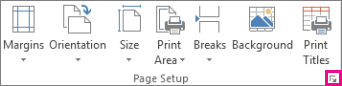
  1. Click Page Layout > Page Setup dialog box launcher.
    Dialog box launcher in the Page Setup group
  2. On the Sheet tab, under Print, uncheck the Black and white and Draft quality check boxes.
Note: If you don't see colors in your worksheet, it may be that you're working in high contrast mode. If you don't see colors when you preview before you print, it may be that you don't have a color printer selected.

Change the column width and row height

www.iptindia.com
Change the column width and row height

Change the column width and row height

On a worksheet, you can specify a column width of 0 (zero) to 255. This value represents the number of characters that can be displayed in a cell that is formatted with the standard font. The default column width is 8.43 characters. If you set a column width to 0 (zero), the column is hidden.
You can specify a row height of 0 (zero) to 409. This value represents the height measurement in points (1 point equals approximately 1/72 inch or 0.035 cm). The default row height is 12.75 points (approximately 1/6 inch or 0.4 cm). If your set a row height to 0 (zero), the row is hidden.
If you are working in Page Layout view (View tab, Workbook Views group, Page Layout button), you can specify a column width or row height in inches. In this view, inches are the measurement unit by default, but you can change the measurement unit to centimeters or millimeters (On the File tab, click Options, click the Advanced category, and under Display, select an option from the Ruler Units list).

What do you want to do?

Set a column to a specific width
Change the column width to automatically fit the contents (auto fit)
Match the column width to another column
Change the default width for all columns on a worksheet or workbook
Change the width of columns by using the mouse
Set a row to a specific height
Change the row height to fit the contents
Change the height of rows by using the mouse

Set a column to a specific width

  1. Select the column or columns that you want to change.
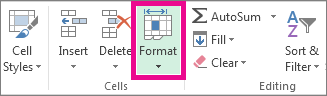
  2. On the Home tab, in the Cells group, click Format.
    On the Home tab, click Format
  3. Under Cell Size, click Column Width.
  4. In the Column width box, type the value that you want.
  5. Click OK.
    Tip:  To quickly set the width of a single column, right-click the selected column, click Column Width, and then type the value that you want.
Top of Page

Change the column width to automatically fit the contents (auto fit)

  1. Select the column or columns that you want to change.
  2. On the Home tab, in the Cells group, click Format.
    On the Home tab, click Format
  3. Under Cell Size, click AutoFit Column Width.
    Note:  To quickly autofit all columns on the worksheet, click the Select All button, and then double-click any boundary between two column headings.
Select All button
Top of Page

Match the column width to another column

  1. Select a cell in the column that has the width that you want to use.
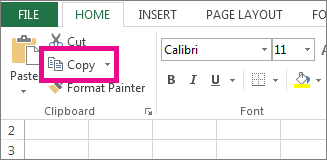
  2. Press Ctrl+C, or on the Home tab, in the Clipboard group, click Copy.
    On the Home tab, click Copy
  3. Right-click a cell in the target column, point to Paste Special, and then click the Keep Source Columns Widths Button image button
Top of Page

Change the default width for all columns on a worksheet or workbook

The value for the default column width indicates the average number of characters of the standard font that fit in a cell. You can specify a different number for the default column width for a worksheet or workbook.
  1. Do one of the following:
    • To change the default column width for a worksheet, click its sheet tab.
    • To change the default column width for the entire workbook, right-click a sheet tab, and then click Select All Sheets on the shortcut menu.
      Click the Sheet tab
  2. On the Home tab, in the Cells group, click Format.
    On the Home tab, click Format
  3. Under Cell Size, click Default Width.
  4. In the Standard column width box, type a new measurement, then click OK.
    Tip:  If you want to define the default column width for all new workbooks and worksheets, you can create a workbook template or a worksheet template, and then base new workbooks or worksheets on those templates.
Top of Page

Change the width of columns by using the mouse

Do one of the following:
  • To change the width of one column, drag the boundary on the right side of the column heading until the column is the width that you want.
    Column boundary being dragged
  • To change the width of multiple columns, select the columns that you want to change, and then drag a boundary to the right of a selected column heading.
  • To change the width of columns to fit the contents, select the column or columns that you want to change, and then double-click the boundary to the right of a selected column heading.
  • To change the width of all columns on the worksheet, click the Select All button, and then drag the boundary of any column heading.
    Select All button
Top of Page

Set a row to a specific height

  1. Select the row or rows that you want to change.
  2. On the Home tab, in the Cells group, click Format.
    On the Home tab, click Format
  3. Under Cell Size, click Row Height.
  4. In the Row height box, type the value that you want.
Top of Page

Change the row height to fit the contents

  1. Select the row or rows that you want to change.
  2. On the Home tab, in the Cells group, click Format.
    On the Home tab, click Format
  3. Under Cell Size, click AutoFit Row Height.
    Tip:  To quickly autofit all rows on the worksheet, click the Select All button, and then double-click the boundary below one of the row headings.
Select All button
Top of Page

Change the height of rows by using the mouse

Do one of the following:
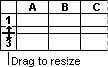
  • To change the row height of one row, drag the boundary below the row heading until the row is the height that you want.
    Row boundary being dragged
  • To change the row height of multiple rows, select the rows that you want to change, and then drag the boundary below one of the selected row headings.
  • To change the row height for all rows on the worksheet, click the Select All button, and then drag the boundary below any row heading.
    Select All button
  • To change the row height to fit the contents, double-click the boundary below the row heading.

Headers and footers in a worksheet

www.iptindia.com

Headers and footers in a worksheet

You can add headers or footers at the top or bottom of a printed worksheet in Microsoft Excel. For example, you might create a footer that has page numbers, the date, and the name of your file. You can create your own or use many built-in headers and footers.
Headers and footers are not displayed on the worksheet in Normal view — they are displayed only in Page Layout view and on the printed pages. For Excel worksheets, you can insert headers or footers in Page Layout view where you can see them. You can also use the Page Setup dialog box if you want to insert headers or footers for more than one worksheet at the same time. For other sheet types, such as chart sheets, you can insert headers and footers only by using the Page Setup dialog box.

What do you want to do?

Add or change the header or footer text in Page Layout view
Add or change the header or footer text in the Page Setup dialog box
Add a built-in header or footer
Add built-in elements in a header or footer
Choose header and footer options
Close headers and footers
Remove the header or footer text from a worksheet

Add or change the header or footer text in Page Layout view

Click the worksheet that you want to add headers or footers, or that contains headers or footers that you want to change.
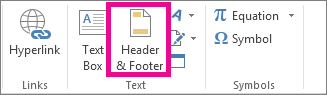
  1. On the Insert tab, in the Text group, click Header & Footer.
    Header & Footer option on the Insert tab
    Excel displays the worksheet in Page Layout view. You can also click Page Layout View Button image on the status bar to display this view.

  2. Do one of the following:
    • To add a header or footer, click the left, center, or right header or footer text box at the top or the bottom of the worksheet page (under Header or above Footer).
    • To change a header or footer, click the header or footer text box at the top or the bottom of the worksheet page, and then select the text that you want to change.
  3. Type the new header or footer text.
    Notes: 
    • To start a new line in a header or footer text box, press Enter.
    • To delete a portion of a header or footer, select the portion that you want to delete in the header or footer text box, and then press Delete or Backspace. You can also click the text, and then press Backspace to delete the previous characters.
    • To include a single ampersand (&) in the text of a header or footer, use two ampersands. For example, to include "Subcontractors & Services" in a header, type Subcontractors && Services.
    • To close the headers or footers, click anywhere in the worksheet. To close the headers or footers without keeping the changes that you made, press Esc.
Top of Page

Add or change the header or footer text in the Page Setup dialog box

  1. Click the worksheet or worksheets, chart sheet, or embedded chart to which you want to add headers or footers, or that contains headers or footers that you want to change.
    How to select multiple worksheets
    To select Do this
    A single sheetClick the sheet tab.
    Click the Sheet tab
    If you don't see the tab that you want, click the tab scrolling buttons to display the tab, and then click the tab.
    Click the tab scrolling arrows
    Two or more adjacent sheetsClick the tab for the first sheet. Then hold down Shift while you click the tab for the last sheet that you want to select.
    Two or more nonadjacent sheetsClick the tab for the first sheet. Then hold down Ctrl while you click the tabs of the other sheets that you want to select.
    All sheets in a workbookRight-click a sheet tab, and then click Select All Sheets on the shortcut menu.
    When multiple worksheets are selected, [Group] appears in the title bar at the top of the worksheet. To cancel a selection of multiple worksheets in a workbook, click any unselected worksheet. If no unselected sheet is visible, right-click the tab of a selected sheet, and then click Ungroup Sheets.
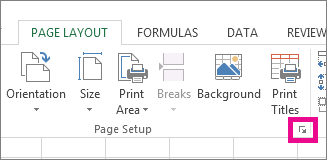
  2. On the Page Layout tab, in the Page Setup group, click the Dialog Box Launcher Button image .
    Click the arrow in the bottom right corner of the Page Setup group
    Excel displays the Page Setup dialog box.
    If you select a chart sheet or embedded chart, clicking Header & Footer in the Text group on the Insert tab also displays the Page Setup dialog box.
  3. On the Header/Footer tab, click Custom Header or Custom Footer.
  4. Click in the Left section, Center section, or Right section box, and then click the buttons to insert the header or footer information that you want in that section.
  5. To add or change the header or footer text, type additional text or edit the existing text in the Left section, Center section, or Right section box.
    Notes: 
    • To start a new line in a section box, press Enter.
    • To delete a portion of a header or footer, select the portion that you want to delete in the section box and then press Delete or Backspace. You can also click the text, and then press Backspace to delete the previous characters.
    • To include a single ampersand (&) in the text of a header or footer, use two ampersands. For example, to include "Subcontractors & Services" in a header, type Subcontractors && Services.
    • To base a custom header or footer on an existing header or footer, click the header or footer in the Header or Footer box.
Top of Page

Add a built-in header or footer

Excel has many built-in headers and footers that you can use. For worksheets, you can work with headers and footers in Page Layout view. For other sheet types such as chart sheets, or for embedded charts, you can work with the headers and footers in the Page Setup dialog box.

Add a built-in header or footer to a worksheet in Page Layout view

  1. Click the worksheet to which you want to add a predefined header or footer.
  2. On the Insert tab, in the Text group, click Header & Footer.
    Header & Footer option on the Insert tab
    Excel displays the worksheet in Page Layout view. You can also click Page Layout View Button image on the status bar to display this view.
  3. Click the left, center, or right header or footer text box at the top or the bottom of the worksheet page.
    Clicking any text box selects the header or footer and displays the Header and Footer Tools, adding the Design tab.
  4. On the Design tab, in the Header & Footer group, click Header or Footer, and then click the predefined header or footer that you want.

Add a built-in header or footer to a chart

  1. Click the chart sheet or embedded chart to which you want to add a predefined header or footer.
  2. On the Insert tab, in the Text group, click Header & Footer.
    Header & Footer option on the Insert tab
    Excel displays the Page Setup dialog box.
  3. Click the predefined header or footer that you want to use in the Header or Footer box.
Top of Page

Add built-in elements in a header or footer

Instead of picking a built-in header or footer, you can just choose a built-in element. Many (Page Number, File Name, Current Date, etc.) are found in the ribbon. For worksheets, you can work with headers and footers in Page Layout view. For other sheet types such as chart sheets, or for embedded charts, you can work with headers and footers in the Page Setup dialog box.

Insert built-in header and footer elements for a worksheet

  1. Click the worksheet to which you want to add specific header or footer elements.
  2. On the Insert tab, in the Text group, click Header & Footer.
    Header & Footer option on the Insert tab
    Excel displays the worksheet in Page Layout view. You can also click Page Layout View Button image on the status bar to display this view.
  3. Click the left, center, or right header or footer text box at the top or the bottom of the worksheet page.
    Clicking any text box selects the header or footer and displays the Header and Footer Tools, adding the Design tab.
  4. On the Design tab, in the Header & Footer Elements group, click the elements that you want.

Insert built-in header and footer elements for a chart

  1. Click the chart sheet or embedded chart to which you want to add a predefined header or footer.
  2. On the Insert tab, in the Text group, click Header & Footer.
    Header & Footer option on the Insert tab
    Excel displays the Page Setup dialog box.
  3. Click Custom Header or Custom Footer.
  4. Use the buttons in the Header or Footer dialog box to insert specific header and footer elements.
    When you rest the mouse pointer on a button, a ScreenTip displays the name of the element that the button inserts.
Top of Page

Choose header and footer options

For worksheets, you can work with headers and footers in Page Layout view. For other sheet types such as chart sheets, or for embedded charts, you can work with headers and footers in the Page Setup dialog box.

Choose the header and footer options for a worksheet

  1. Click the worksheet for which you want to choose header and footer options.
  2. On the Insert tab, in the Text group, click Header & Footer.
    Header & Footer option on the Insert tab
    Excel displays the worksheet in Page Layout view. You can also click Page Layout View Button image on the status bar to display this view.
  3. Click the left, center, or right header or footer text box at the top or the bottom of the worksheet page.
    Clicking any text box selects the header or footer and displays the Header and Footer Tools, adding the Design tab.
  4. On the Design tab, in the Options group, check one or more of the following:
    • To remove headers and footers from the first printed page, select the Different First Page check box.
To specify that the headers and footers on odd-numbered pages should differ from those on even-numbered pages, select the Different Odd & Even Pages check box.
  • To specify whether the headers and footers should use the same font size and scaling as the worksheet, select the Scale with Document check box.
To make the font size and scaling of the headers or footers independent of the worksheet scaling, which helps create a consistent display across multiple pages, clear this check box.
  • To make sure the header or footer margin is aligned with the left and right margins of the worksheet, select the Align with Page Margins check box.
    To set the left and right margins of the headers and footers to a specific value that is independent of the left and right margins of the worksheet, clear this check box.

Choose the header and footer options for a chart

  1. Click the chart sheet or embedded chart to which you want to add a predefined header or footer.
  2. On the Insert tab, in the Text group, click Header & Footer.
    Header & Footer option on the Insert tab
    Excel displays the Page Setup dialog box.
  3. Select one or more of the following:
    • To remove headers and footers from the first printed page, select the Different first page check box.
To specify that the headers and footers on odd-numbered pages should differ from those on even-numbered pages, select the Different odd & even pages check box.
  • To specify whether the headers and footers should use the same font size and scaling as the worksheet, select the Scale with document check box.
To make the font size and scaling of the headers or footers independent of the worksheet scaling, which helps create a consistent display across multiple pages, clear the Scale with Document check box.
  • To guarantee that the header or footer margin is aligned with the left and right margins of the worksheet, select the Align with page margins check box.
    To set the left and right margins of the headers and footers to a specific value that is independent of the left and right margins of the worksheet, clear this check box.
Top of Page

Close headers and footers

To close the header and footer, you must switch from Page Layout view to Normal view.
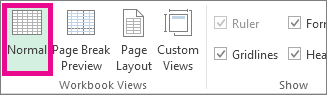
  • On the View tab, in the Workbook Views group, click Normal.
    On the View tab, click Normal
    You can also click Normal Button image on the status bar.

Remove the header or footer text from a worksheet

  1. On the Insert tab, in the Text group, click Header & Footer.
Header & Footer option on the Insert tab
Excel displays the worksheet in Page Layout view. You can also click Page Layout View Button image on the status bar to display this view.
  1. Click the left, center, or right header or footer text box at the top or the bottom of the worksheet page.
    Clicking any text box selects the header or footer and displays the Header and Footer Tools, adding the Design tab.
  2. Press Delete or Backspace.
    If you want to delete headers and footers for several worksheets instantly, select the worksheets, and then open the Page Setup dialog box. To delete all headers and footers instantly, on the Header/Footer tab, select (none) in the Header or Footer box.