Wrap text in a cell
What do you want to do?
Wrap text automatically
- In a worksheet, select the cells that you want to format.
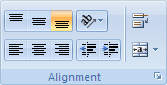
- On the Home tab, in the Alignment group, click Wrap Text
 .
.
Notes:- Data in the cell wraps to fit the column width, so if you change the column width, data wrapping adjusts automatically.
- If all wrapped text is not visible, it may be because the row is set to a specific height or that the text is in a range of cells that has been merged.
Adjust the row height to make all wrapped text visible
- Select the cell or range for which you want to adjust the row height.
- On the Home tab, in the Cells group, click Format.

- Under Cell Size, do one of the following:
- To automatically adjust the row height, click AutoFit Row Height.
- To specify a row height, click Row Height, and then type the row height that you want in the Row height box.
Tip: You can also drag the bottom border of the row to the height that shows all wrapped text.
Enter a line break
To start a new line of text at any specific point in a cell:- Double-click the cell in which you want to enter a line break.Tip: You can also select the cell, and then press F2.
- In the cell, click the location where you want to break the line, and press Alt+ Enter.


No comments:
Post a Comment