Quick start: Sort data in an Excel worksheet
Quick start: Sort data in an Excel worksheet
When you sort information in a worksheet, you can see data the way you want and find values quickly. You can sort a range or table of data on one or more columns of data; for example, you can sort employees first by department and then by last name.
How to sort in Excel?
 | Select the data that you want to sort
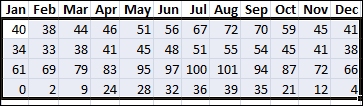
- Select a range of data, such as A1:L5 (multiple rows and columns) or C1:C80 (a single column). The range can include titles (headers) that you create to identify columns or rows.
 |
 | Sort quickly
Select a single cell in the column you want to sort.
On the Data tab, in the Sort & Filter group, click  to perform an ascending sort (A to Z or smallest number to largest). 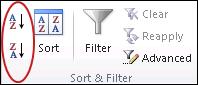
Click  to perform a descending sort (Z to A or largest number to smallest).
|
 | Sort by specifying criteria
Use this technique to choose the column you want to sort, plus other criteria such as font or cell colors.
Select a single cell anywhere in the range that you want to sort.
On the Data tab, in the Sort & Filter group, click Sort.
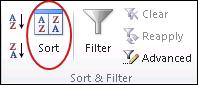
The Sort dialog box appears.
In the Sort by list, select the first column on which you want to sort.
In the Sort On list, select either Values, Cell Color, Font Color, or Cell Icon.
In the Order list, select the order that you want to apply to the sort operation — alphabetically or numerically ascending or descending (that is, A to Z or Z to A for text or lower to higher or higher to lower for numbers
|


No comments:
Post a Comment